a presentation

.

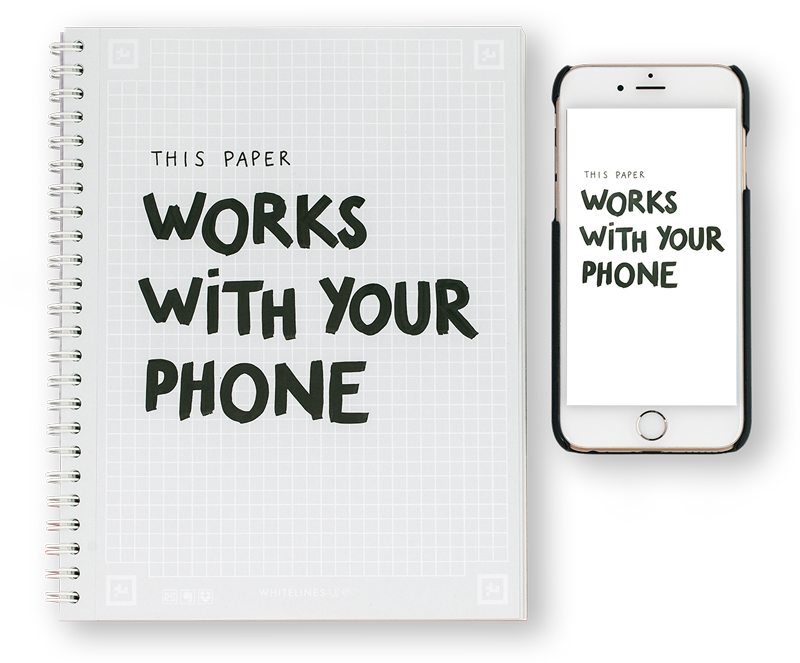
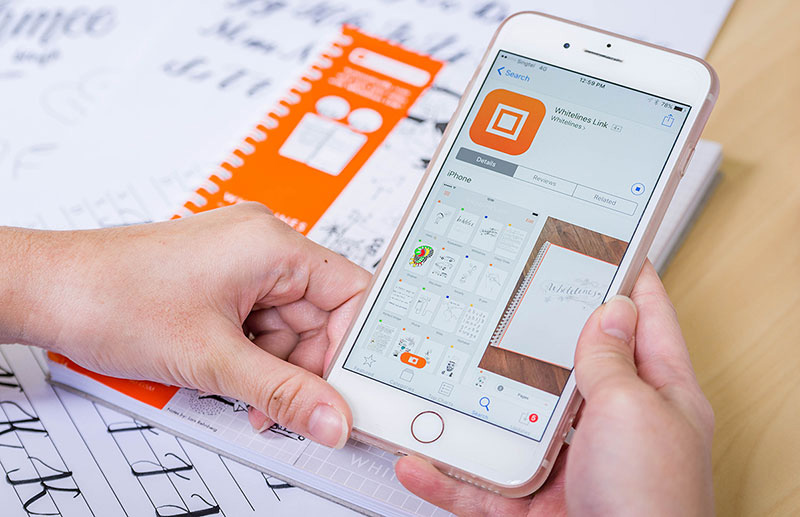
Whitelines® Link is a happy combo of physical and digital notes. You could call it a clever scanner-app that in combination with Whitelines® Link paper makes it super easy to capture, save and share your notes.

HOW IT WORKS

The basic idea is to let the app and the paper actually see each other and the rest will happen automatically. Make sure the four corner markers are visible in the display – hold still for a moment – let the app capture your note – and save or share your note in a way you like.


     

.

How to capture your note

.

.

Quick Boxes – a shortcut

A quick way to save or share your note is to tick a Quick Box on the paper with a pen. The app will find your instruction and automatically act on it either by instantly creating an e-mail or by sending it to your Dropbox or Evernote account. Inside the app there are other ways of saving or sharing your notes, which also will be kept in the local library.

Use the quickboxes to get a shortcut to mail, Dropbox or Evernote

Use the Quick Boxes to get a shortcut to e-mail or your Dropbox or Evernote accounts.

THE INNOVATION CONCEPT

One way to describe the innovation is to call it ”a change of information flow”. Instead of forcing a camera to capture a random picture, the Whitelines® Link paper ”tells” the app to capture a note when the optical conditions are good enough. This means every note will have the same quality regardless the skill of the person behind the camera. Also, you can continue to work with the note in correct format since the information about the paper from the capture moment will be kept together with the note.

ABOUT WHITELINES® LINK

A couple of years ago we said; ”We claim that all people are innovators. Okey, lets prove it and innovate!”

As paper people we of course think pen and paper is a super tool but there are other great tools as well, like the internet cloud. We love the freedom you get with the cloud in terms of accessability to your documents and the feeling of security to know that the ideas have been taken care of. If possible, why not aim to be able to work where ever you are and also get the best creative support?

We didn´t have to think long before we decided to accept this challenge; How can we add the digital world to the anolog use of pen and paper?

COULD THIS BE YOU?

You are sitting in a café, working with a colleague and want to share your thoughts with the rest of the team. In seconds you upload your ideas to your teams Dropbox or Evernote account or send them an e-mail.

You have been ill and want to have the notes from the classes you missed. Your friend offers you to use her notes, just capture them with Withelines® Link.

You are on the train and explaining something really complex to a friend or a collegue over the phone. It is hard to get through so you just make a sketch and e-mail it!

You are entering a meeting where you are not really supposed to open your laptop and hide behind it. With your pen and Whitelines® Link paper your work will still be digitally saved.


It works brilliantly!! You should put this in all books. Received a new A5 book yesterday, happy and sad at the same time

@iestynx via Twitter

Other than that it worked so well I laughed with joy!

Jon Hicks, Hickensian
Hicks Design

We are already using the printed PDF's in our collaborative design sessions. Fantastic!

Glyn Thomas
Mote

Great mix of analogue and digital

Customer Reviews

More information

Capture

The note will be captured when following conditions are fulfilled:

  • The four corner markers are at the same time seen in the display.
  • The corner markers are not shadowed or in another way visually impaired.
  • The phone is held still.
  • The phone is not too far away from the paper.
  • The phone is not too tilted relatively the paper.
  • The surrounding light is good enough.  (Note! If not good enough turn on the ”flash lamp” to capture the note.)

Auto orientation

The note will be adjusted sideways and in perspective to adjust images captured from an angle. This means all notes will be displayed as scanned perfectly flat and will always fill the screen.

Auto edit

Whitelines® Link will adjust color tone differencies in the paper caused by bad light conditions and shadows. It will also remove any background noise and present your note with a pure white background to enhance the result. Of course all your fine details from both pens and pencils, and in any color, will be entirely preserved.

Quick Box

The Quick Box on the bottom of the Whitelines® Link paper is a way to create a shortcut to one or more sharing options. If you tick inside one or more Quick Boxes with a pen the app will find this and act upon it, either by automatically creating an e-mail with the note attached and/or send the note to the Evernote notebook and/or Dropbox folder you have selected under Settings.

Note! To be able to do this you need to have accounts on Evernote and/or Dropbox.

Other sharing options

From within the app you are able to copy your note and to export it to your Camera Roll. Use Copy to move the note between programs on the phone and Save to Camera Roll to handle it as a photo image. (Tip: Use Save to Camera Roll and Air Play to display your note on a TV or projector, through an Apple TV!)

Categorization in app

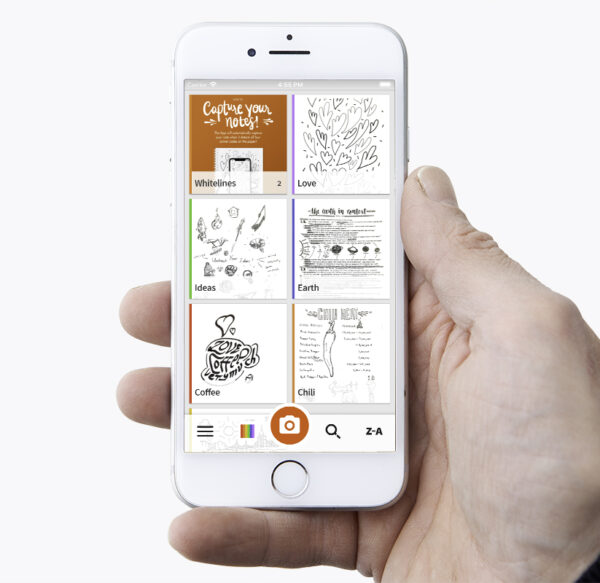
There are four preset category names in the app when you start: Ideas, Class, Work and Sketches. These are only suggestions and can be renamed, deleted or get other color tags in Edit Labels. The notes can then be related to categories in many ways.

Choose category for the note before capturing your note or do it later in All notes or per each note in page view.


edit categories

Under Edit Labels you can change name on each category, change order in the list, color and also delete or add new category.

Settings in app

In Settings you can set default Dropbox folder, Evernote notebook and e-mail address for sharing your notes.

Print papers

To try Whitelines Link you are welcome to print free paper from this website. We provide A4 and A5, lined and squared, as PDFs. Note that A4 will not be full size if printed on an A4 printer.

Best print result will on some printers be to print in Black/White and on others to print in color. Use highest print quality. You may need to adjust darkness manually if you are not happy with the printed result. Within the app you can send the welcome page to yourself, and use the Get Paper link to obtain more paper.

iPhone 4 vs 4S (and other devices)

The Whitelines® Link app is fully functional on an iPhone 4. The faster iPhone 4S will however significantly boost the experience. The 4S is also equipped with a higher quality camera, which further will improve the result.

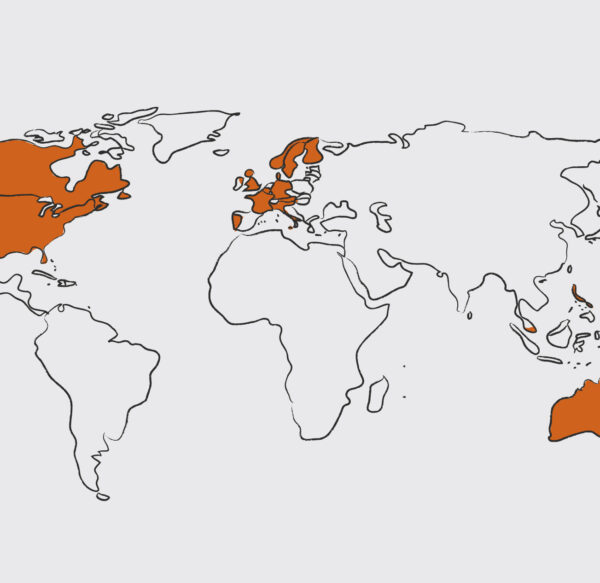
Trying Whitelines® Link on an iPhone 3GS or earlier, iPad 1 or 2, or iPod Touch will not work. The reason is that these devices don´t have autofocus which is required. On iPad 3 you will need iOS6 for it to work. The lack of autofocus also makes the app not visible for these devices on App Store.

iOS

iOS 5 is required for the app to work.

Developer

The Whitelines® Link App has been developed together with Bontouch AB, Sweden.